For schools
Run dismissal from one screen,and know who took each child.
Your staff still hand each child over at the curb. Carline puts the cars in order, tells each classroom who to send, and records every call, hold and release with the time and the staff member’s name.
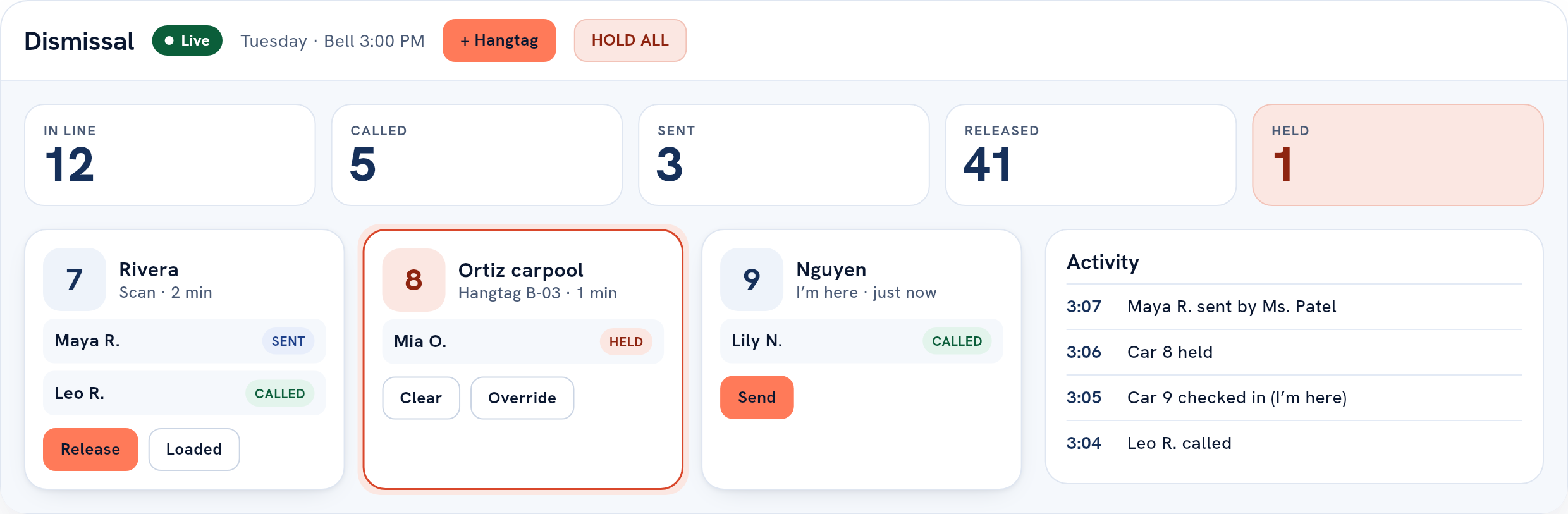
9 Nguyen checked in
I’m here · just now
Mia O. held
Waiting for an admin
The 3:00 scramble
Where pickup goes wrong.
Someone walks the line with a clipboard and a radio. A name goes out, a teacher half-hears it, and a child heads for the wrong door.
The front desk has a sticky note that says “Grandma today.” Nobody at the curb has seen it.
Put a sub in Room 12 and rain on the loop, and all of it gets harder. Then a parent calls on Thursday to ask who took their son home on Monday, and the only answer is whatever somebody remembers.
What it does
What changes at your curb.
Parents check themselves in
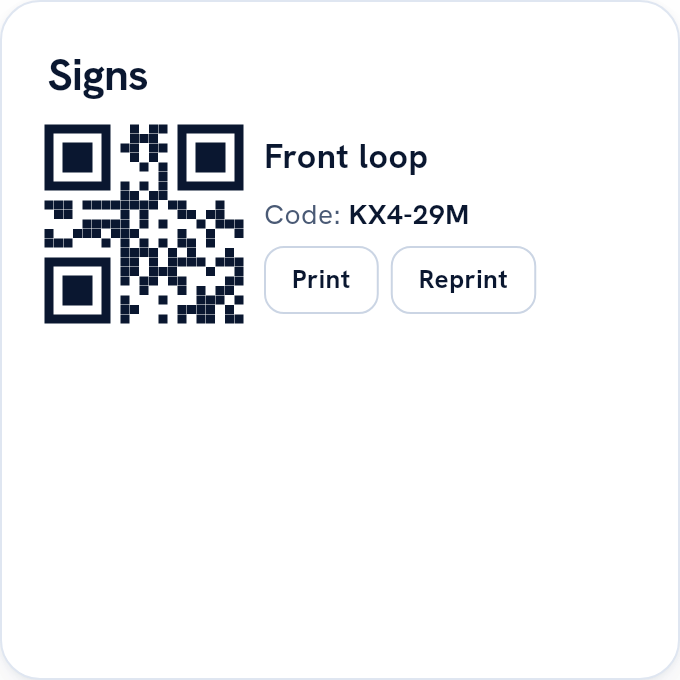
They scan the sign on the pole. Nobody on your staff types a car number for them. If the camera won’t read the sign, there’s a short code printed under it.
A hangtag for everyone else
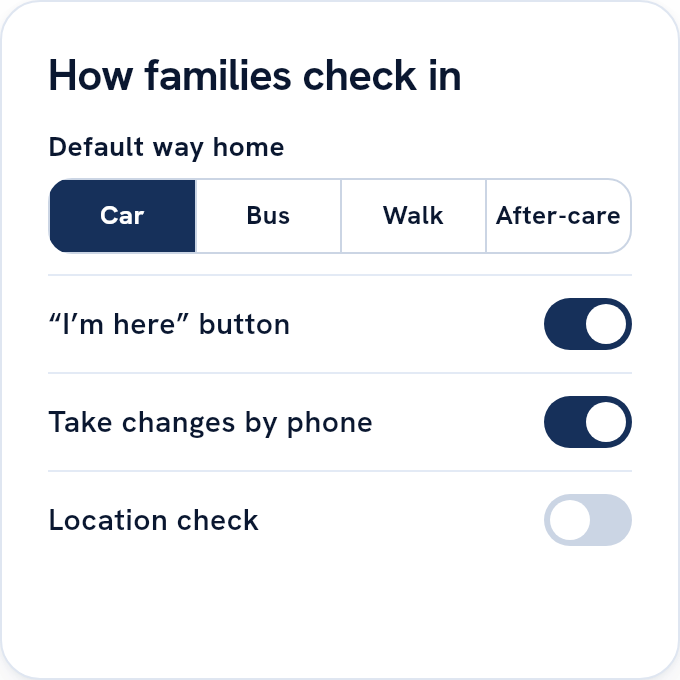
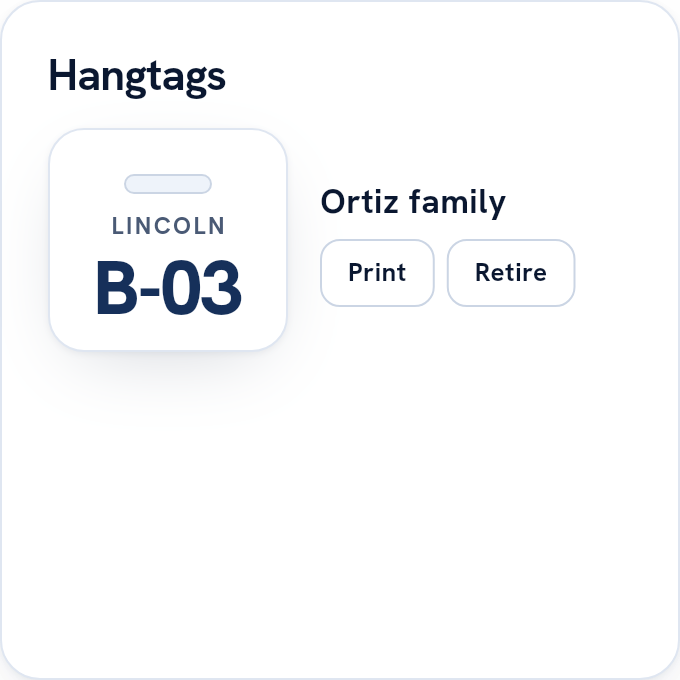
Grandparents, the family with one phone, the dad whose battery died. Staff type or scan the hangtag number and that car joins the same line in arrival order. You print the hangtags from setup, and you decide whether staff add cars this way: it’s a setting you can turn on or off.
Changes stop at your cutoff
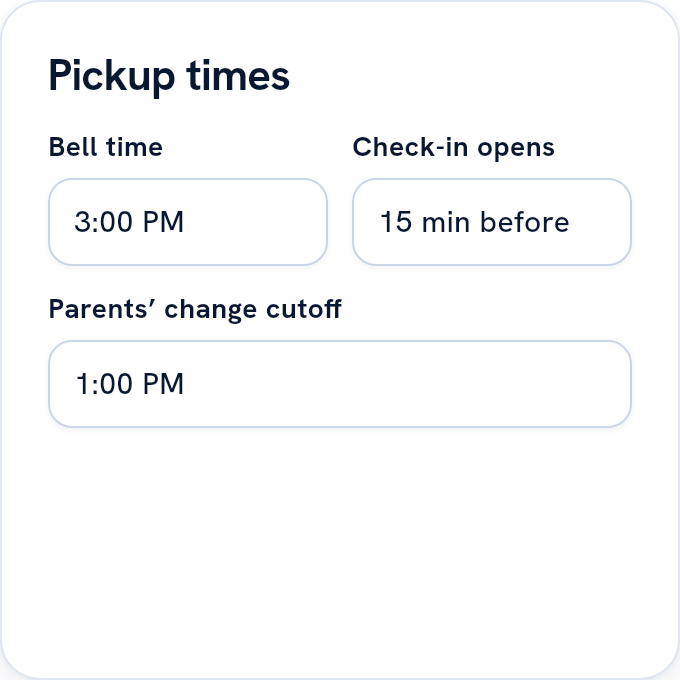
Parents change today’s plan in the app until the time you set, 1:00 or whatever suits your day. After that the app tells them to call the office. Calls and notes your front desk takes go on the same list.
An ID check for anyone new
If a parent names someone else for today, that car is held until a staff member checks the adult’s photo ID against the name. We record the last four characters of the ID, never the whole number.
Custody orders
The office records the order once. The child is held at check-in and at release, the parent it names is told only to contact the office, and only an admin, or staff the school gives the front-office duty, can clear it. Releasing the child to the person the order names stays with an admin.
HOLD ALL
One tap from an admin stops every classroom board. Cars keep checking in, in order. A child already outside can still be handed over.
See who is still here
The office view lists every child in the building and where they are. After the car line thins out, a Still here list shows who hasn’t gone. You end dismissal when every child has an outcome.
Inside the product
A screen for each job, in the office and at the curb.
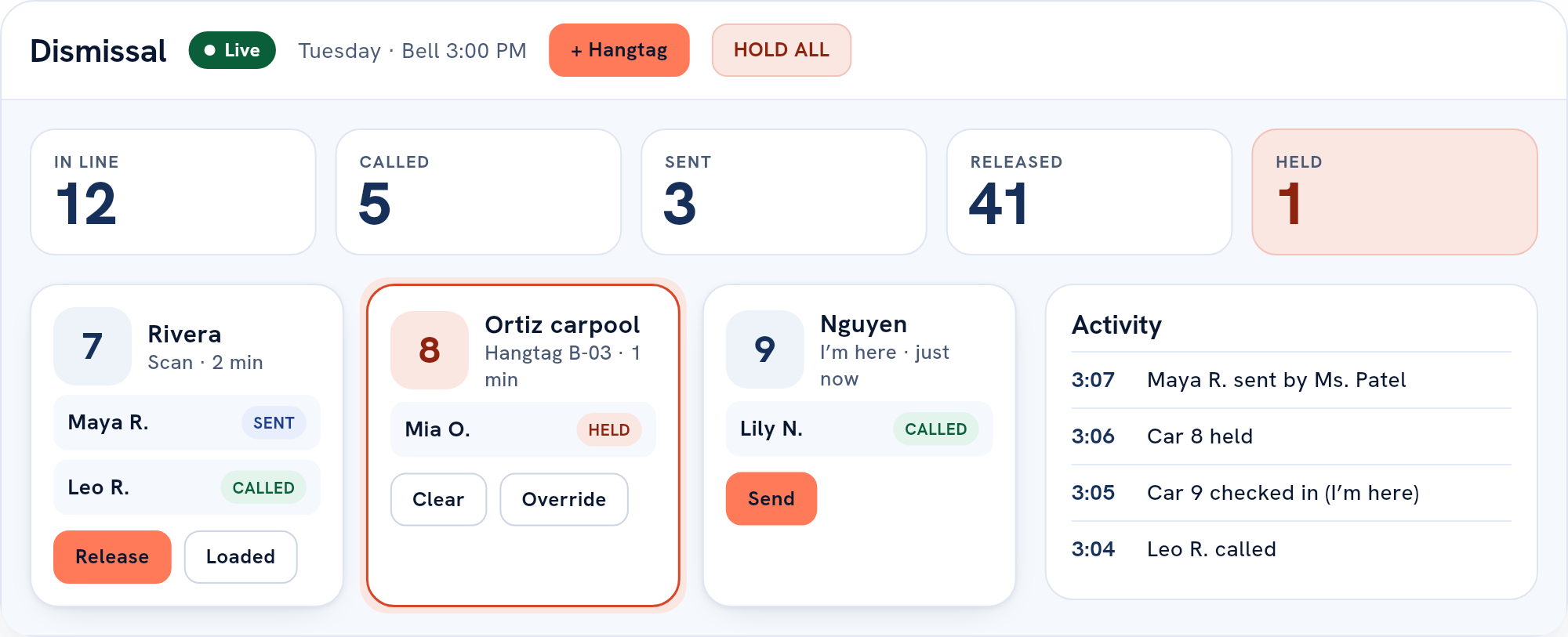
The dismissal dashboard
Cars in the order they arrived, each car’s kids together, and the day’s counts across the top. A held car is flagged so nobody sends it by mistake.
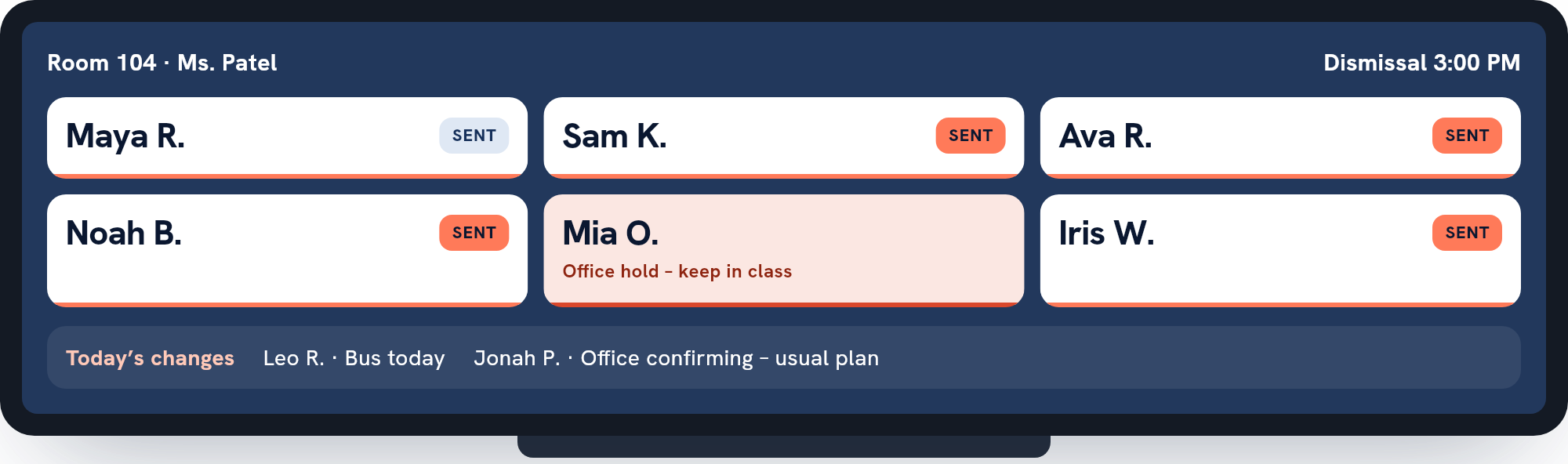
The classroom board
Leave it up on the smartboard. It lists the kids called for that room, each with a Sent button. It never shows a car number or a hangtag number.
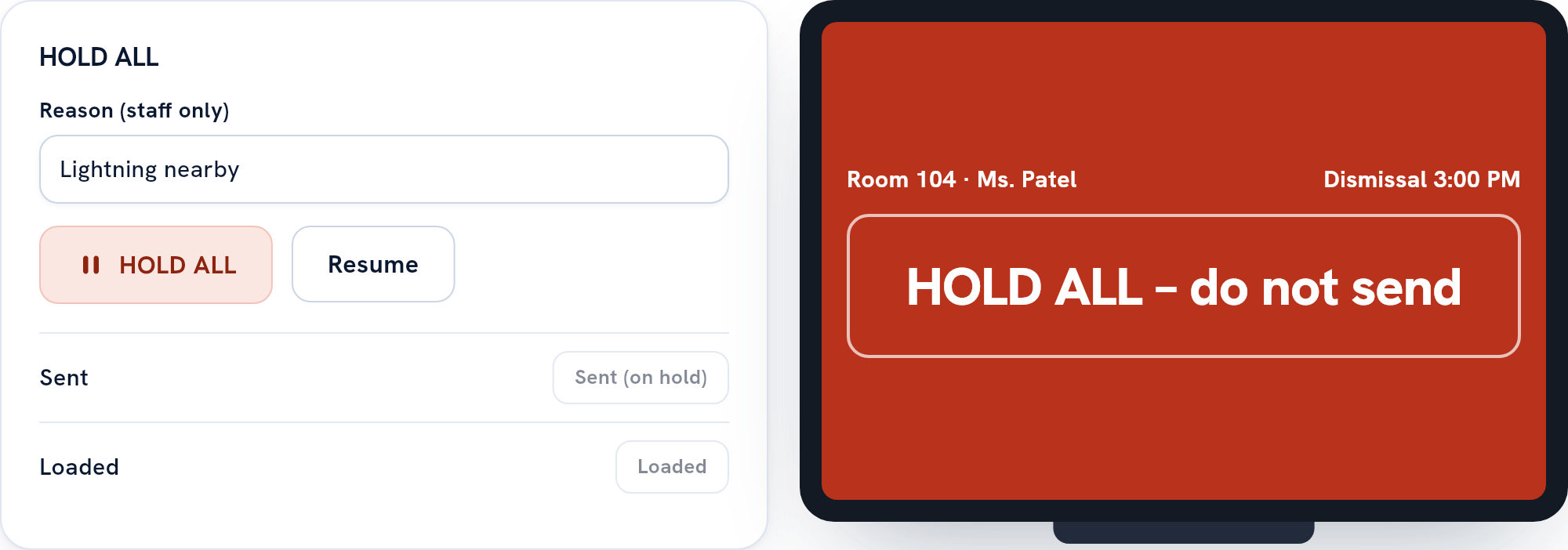
HOLD ALL
One tap from an admin stops every classroom board. Cars keep checking in, in order. A child already outside can still be handed over.
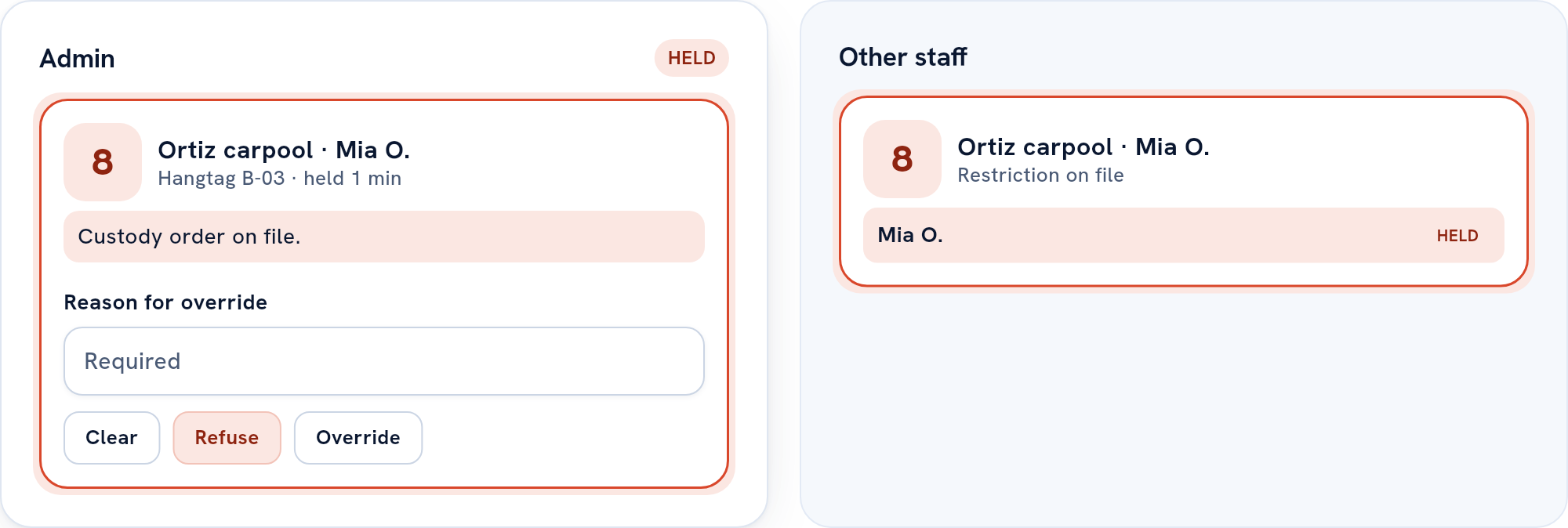
Custody orders
The office records the order once. The child is held at check-in and at release, the parent it names is told only to contact the office, and only an admin, or staff the school gives the front-office duty, can clear it. Releasing the child to the person the order names stays with an admin.
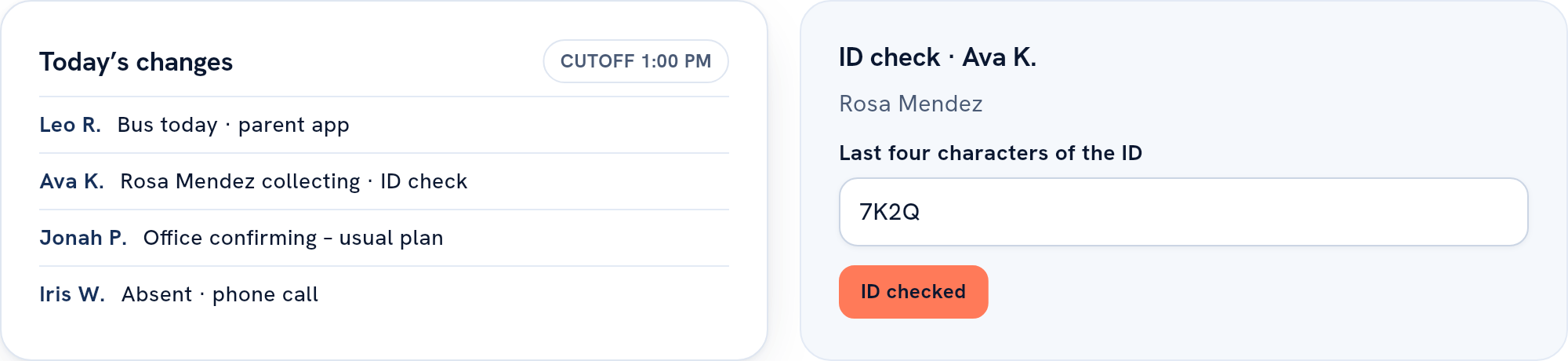
Changes stop at your cutoff
Parents change today’s plan in the app until the time you set, 1:00 or whatever suits your day. After that the app tells them to call the office. Calls and notes your front desk takes go on the same list.
An ID check for anyone new
If a parent names someone else for today, that car is held until a staff member checks the adult’s photo ID against the name. We record the last four characters of the ID, never the whole number.
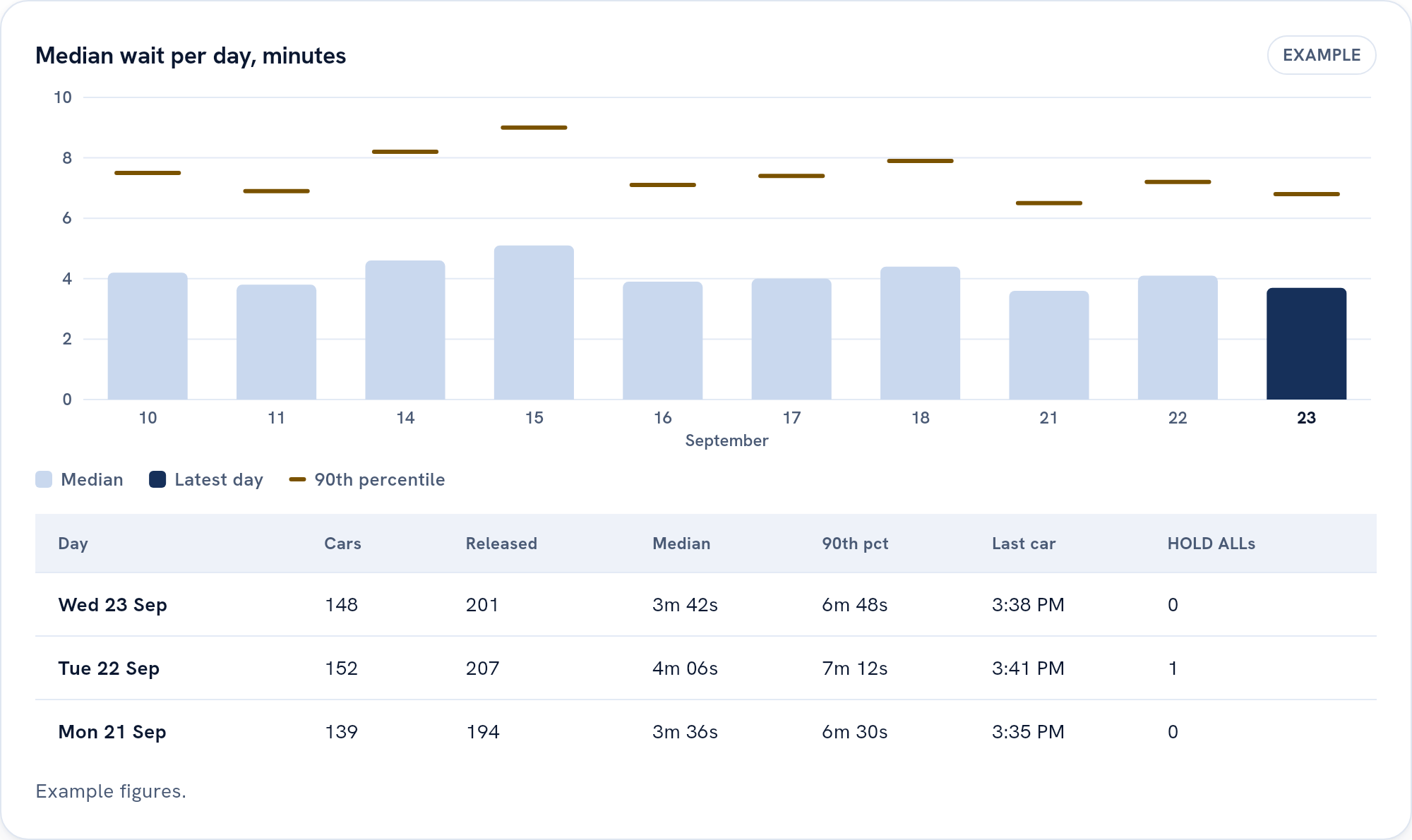
The daily report
One row per day. Cars, kids released, the median wait, and when the last car left.
And the rest
More dismissal tools.
Buses and walkers
Staff call a bus so its riders light up on the classroom boards, then mark who boarded and who missed it. Walkers are released together, and a child kept in is flagged until the office settles it (the Buses & walkers add-on).
How dismissal runsAfter-care and clubs
Each child’s after-care or club days come from the roster or the setup screens, and the boards show where they are going. The program desk receives them from class and checks each one out after an ID check (the After-school add-on).
How dismissal runsEarly pickups
A family books an early pickup with a time and a reason, and the child is called to the office ahead of it. A child nobody collects goes back to their usual way home.
Read the help centerOffice view and end of day
The office view lists every child on the day’s roster by status, from expected to released. The day can’t be closed until every child has an outcome, unless an Admin records why.
Read how it worksCurb displays
A paired screen at the curb shows queue numbers as Now, On deck and Ready, with first names only if the school chooses (the Big car line add-on). A classroom screen shows that room’s board without anyone signing in.
Compare plansLanes
Each sign can put cars into its own lane, and batch loading calls a group of cars at a time. Queue numbers stay in arrival order across every lane (the Big car line add-on).
Compare plansReunification
After an evacuation, staff take a roll call by class and release each child to a linked parent after an ID check, following the Standard Reunification Method. A drill runs the same way and is kept out of the reports.
Read the help centerWorks offline
When the connection drops, releases tapped on a staff phone or tablet wait on the device and are sent when it comes back. Anything that happened during a hold goes to the office to review instead of being applied.
Read the FAQMessaging
Send a letter to the whole school, rooms, grades, bus routes or chosen families, and answer parents from one shared inbox. It comes with some plans, or as an add-on.
Compare plansCalendar
Mark no-school days and early releases, each with its own bell and cutoff, or import them from a spreadsheet or calendar file. Families see the day’s notice in the app.
Read the help center
Permissions
Staff see what their job needs.
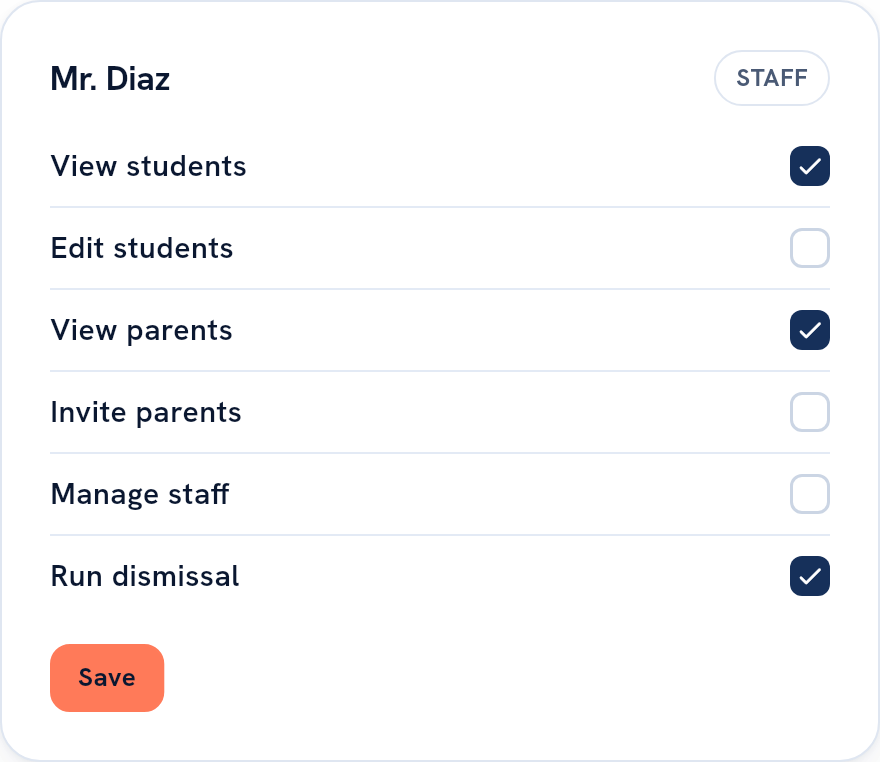
Admins can do everything at their own school. Everyone else gets permissions one at a time: view students, edit students, view parents, invite parents, manage staff and run dismissal, and more, such as the front-office duty, messages and reunification.
Any staff member can open a classroom board, because it only shows first names and initials. A custody hold is cleared by an admin or by staff the school gives the front-office duty. HOLD ALL, the daily report and releasing a child to the person an order names stay with admins.
Nobody can change their own permissions, and only an admin can give someone the right to manage staff.
Setup
Start from the spreadsheet you already have.
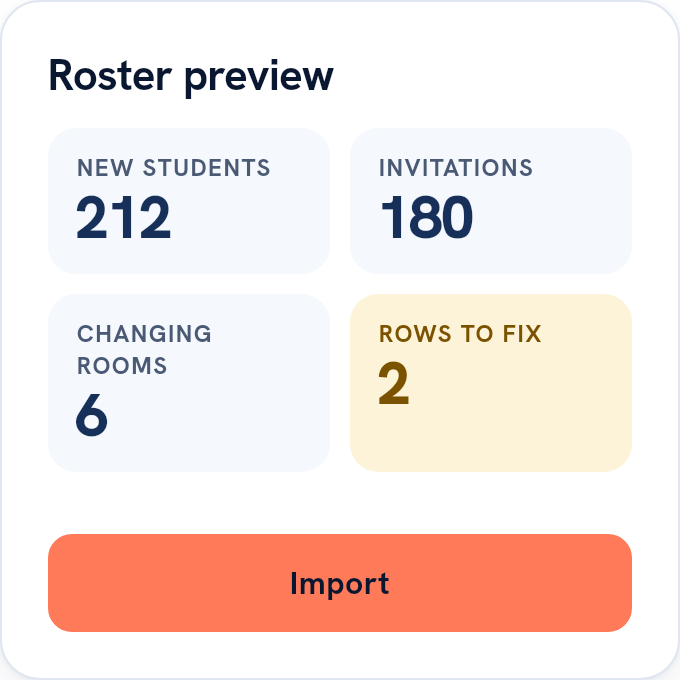
Download our template or use your own export. Upload it and read the preview before anything happens. It shows new and matched students, the parents who’ll get an invitation, kids changing rooms, and any rows we couldn’t read.
Nothing is saved and nobody gets an email until you press Import.
If your student information system speaks OneRoster (1.1 or 1.2), or your district rosters through Clever or ClassLink, Carline can keep the roster in step with it instead.
The record
The day’s record can’t be edited.
Every check-in, call, hold, release and cancellation is saved with who did it and when. The database refuses to change or delete a line. A correction is a new line beside the old one.
When a family, the district or a records request asks, an admin can download a child’s or a family’s record as a PDF, a set of CSV files or JSON. Every download is written to the school’s access log.
What you need
What you need on the first day.
No cameras, no readers, no tablets to buy.
A printer for the signs
A browser on the office computer and on each classroom screen
Your roster as a spreadsheet
Hangtags for the families who want one
Try it on your own car line.
Set it up yourself, or book a demo and we’ll walk through it with you first.